Keyboards

Written by Elizabeth · Published October 5, 2024
Reviewed & Updated by Olivia · Updated on July 24, 2026

Disclosure: This is an affiliate site. If you buy through a link on this page, we may earn a small commission at no extra cost to you. We only recommend boards we would tell a friend to buy.

Akko sits in a sweet spot most keyboard brands miss. You get real build quality, PBT keycaps, and hot-swap sockets at prices that stay friendly, plus a lineup that runs from budget starter boards to magnetic-switch gaming decks. That range is great for buyers and confusing at the same time, because two Akko boards at similar prices can feel completely different.

This guide sorts it out. Below are the best Akko keyboards for different needs, each with what it does well, where it falls short, and who should skip it. If you only read this page, you should still leave knowing which one to buy.

⚡ Quick take: for most people, a hot-swappable 75% Akko board is the best balance of size, features, and price. Competitive gamers should look at the magnetic MOD007 line. Numpad users and budget buyers are covered below.

How I picked these

I chose boards to cover the decisions that actually change how a keyboard feels: size, switch type, wireless, and build. Every pick had to earn its place on more than a spec sheet.

  • Form factor spread so there is a right answer whether you want a numpad or a tiny 60%.
  • Switch options, including Akko CS-series mechanical switches and the newer Hall-Effect magnetic switches for gaming.
  • Build and keycaps, favoring a stable case, PBT keycaps, and gasket mounting where it matters.
  • Value, judged against what the same money buys elsewhere.
  • Real limitations, because a pick with no downsides is a pick you cannot trust.

One note before we start: Akko software is the brand’s weakest area, and VIA support is limited to select models. That shapes a few picks below, and I call it out where it matters.

Quick picks

CategoryPickWhy
Best overallAkko ACR7575% layout, hot-swap, gasket mount, easy to live with
Best for competitive gamingAkko MOD007 V5 HEMagnetic switches, adjustable actuation, rapid trigger
Best value magnetic boardAkko 5075 V3 HEHall-Effect performance at a lower price
Best full-sizeAkko 3098BNumpad, aluminum-accented case, wireless
Best compact (65%)Akko MOD007 (65%)Keeps arrow keys, frees desk space
Best design pieceAkko MU02Real walnut case, warm premium look
Best for creatorsAkko 5098BBuilt-in screen and scroll-wheel numpad

The best Akko keyboards

Best overall: Akko ACR75

ACR75 Black edited e1785004199413

Why it is here. The ACR75 gets the fundamentals right without asking you to compromise. The 75% layout keeps your function row and arrow keys while dropping the numpad, so your mouse sits closer and your shoulder relaxes. Hot-swap sockets let you change switches with no soldering, and gasket mounting gives the typing feel a soft, cushioned bottom-out instead of a hard tap.

Who it is for. Someone who wants one board that types well, fits any desk, and can grow with them as they learn what they like.

Strengths: flexible 75% layout, hot-swap PCB, gasket mount for a softer feel, PBT keycaps that stay matte instead of going shiny. Weak spots: it is wired-focused, and Akko software is clunky if you want deep remapping.

Price: mid-range. Skip it if you need a numpad daily, or you want proper VIA and QMK remapping out of the box.

Best for competitive gaming: Akko MOD007 V5 HE

MOD-007-V5-Gradient-Hybrid-Black-Transparent-LED-GX2

Why it is here. This is Akko’s answer to premium magnetic gaming boards, at well under boutique prices. Hall-Effect magnetic switches let you set exactly how deep a key travels before it registers, and rapid trigger resets the key the instant you lift, which helps with counter-strafing and fast repeated taps. The CNC aluminum case with stainless accents gives it real desk presence, and a tool-free ball-catch mechanism makes opening it for mods genuinely easy.

Who it is for. Competitive FPS players who want adjustable actuation and low latency without paying the highest enthusiast prices.

Strengths: adjustable actuation point, rapid trigger, premium metal build, tri-mode connectivity. Weak spots: magnetic switches are not swappable with normal mechanical switches, it costs more than most Akko boards, and the software learning curve is real.

Price: premium. Skip it if you mainly type, or you want to swap in standard mechanical switches later.

Best value magnetic board: Akko 5075 V3 HE

5075-V3-Gradient-Hybrid-Black-GX

Why it is here. The 5075 V3 HE, and its 80% sibling the 5087 V3 HE, is the affordable way into magnetic switches. It uses Akko Starlight magnetic switches with a high polling rate and rapid trigger, so the responsiveness is close to boards that cost more. Because it also has gasket mounting, sound foam, and PBT doubleshot keycaps, it types and sounds good rather than being a gaming-only tool.

Who it is for. Budget-minded players who also type all day and want one board that does both.

Strengths: magnetic responsiveness at a lower price, softer gasket-mounted feel, doubleshot PBT keycaps. Weak spots: it is wired only, and you cannot drop in standard mechanical switches.

Price: mid-range. Skip it if you want wireless, or you have no interest in tuning actuation and would rather just buy a good normal board.

Best full-size: Akko 3098B

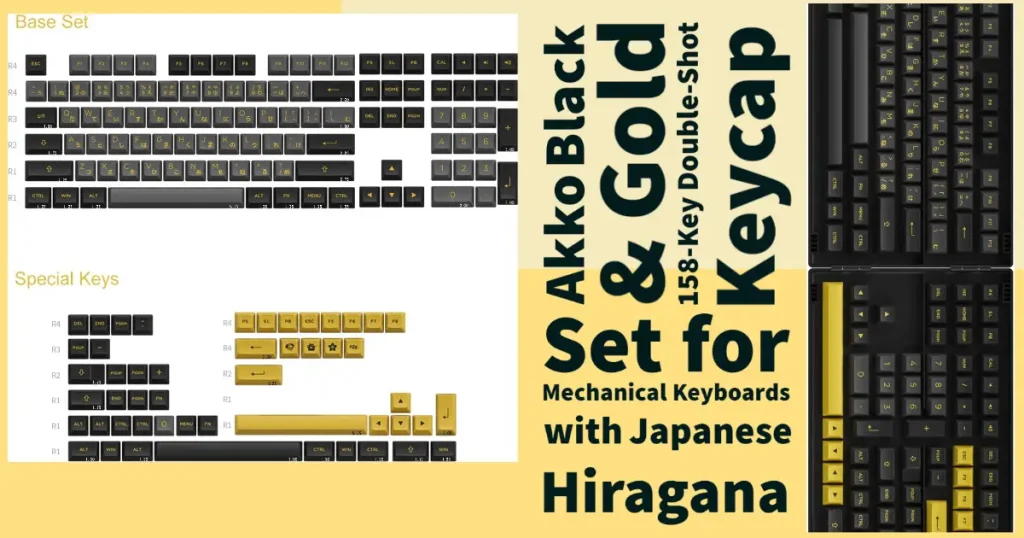
BlackGold-3098N
Black&Gold 3098B

Why it is here. If you punch numbers all day, the 3098B keeps the numpad without feeling cheap. It pairs an aluminum-accented case with hot-swap sockets and PBT doubleshot keycaps, and it runs tri-mode, so you can go wireless over Bluetooth or the 2.4GHz dongle and cut the cable clutter. It comes in Ocean Star and Black and Gold colorways if looks matter.

Who it is for. Accountants, data-entry workers, spreadsheet users, and anyone who reaches for a numpad more than a couple of times a week.

Strengths: full numpad, hot-swap PCB, wireless flexibility, durable keycaps. Weak spots: a full-size board pushes your mouse further right, which is worse for posture over long sessions, and it is larger to travel with.

Price: mid-range. Skip it if you rarely touch a numpad, where a TKL or 75% frees up desk space.

Best compact 65%: Akko MOD007 (65%)

Akko MOD007 (65%)
Akko MOD007 (65%)

Why it is here. The 65% MOD007 keeps the arrow keys that people miss most on smaller boards while cutting the numpad and function row you rarely touch. That makes it compact enough to feel special and functional enough that you will not fight it daily. It is the layout I point people to when they want small without regret.

Who it is for. People who want a minimal, tidy desk but are not ready to give up dedicated arrow keys.

Strengths: space-saving 65% layout, keeps arrows, solid stock build. Weak spots: you reach some keys through a function layer, which takes about a week to learn, and keycap sets for 65% need a compatibility check before you buy.

Price: budget to mid-range. Skip it if you use the function row constantly for work shortcuts, where a 75% is the safer compact choice.

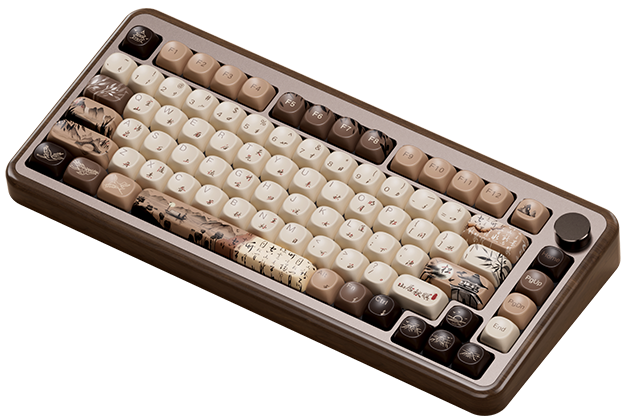
Best design piece: Akko MU02

Akko MU02
Akko MU02

Why it is here. The MU02 is the one you buy because it looks and feels special. A real walnut case is rare at this price and gives the board a warm presence that aluminum and plastic cannot match. It still runs tri-mode wireless and ships with dye-sub PBT keycaps, so it is a genuine daily driver, not just a shelf piece.

Who it is for. Anyone building a warm, design-led desk who wants a centerpiece.

Strengths: solid walnut case, tri-mode connectivity, durable dye-sub keycaps, distinctive look. Weak spots: wood is heavier and needs a little more care than plastic, and the aesthetic premium means you pay more than for a comparable plastic board.

Price: premium. Skip it if you want maximum specs per dollar, or you move the board around a lot and want something rugged and light.

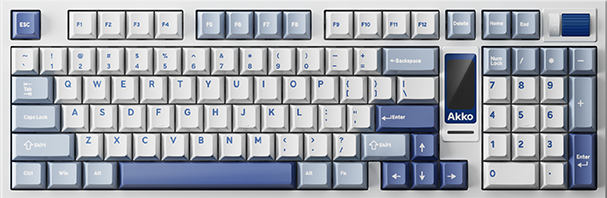
Best for creators: Akko 5098B

Glacier-5098B
Glacier 5098B

Why it is here. The 5098B stands out for its built-in screen and scroll-wheel numpad. The display can show system stats, the time, or custom images, and the wheel doubles as a dial for scrubbing timelines and nudging values, which is genuinely useful when editing video or streaming. It is hot-swap, gasket-mounted, and tri-mode, so the fundamentals hold up under the novelty.

Who it is for. Creators, editors, and streamers who want a functional desk centerpiece that still has a numpad.

Strengths: customizable screen, scroll-wheel numpad, hot-swap PCB, wireless. Weak spots: the screen and wheel add cost you will not use if you only type and game, and the extra features lean on Akko software, the brand’s weak spot.

Price: premium. Skip it if you want a clean, simple board and see the screen as a gimmick you would rather not pay for.

Akko keyboards compared

ModelLayoutSwitch typeWirelessStandoutBest forPrice
ACR7575%Mechanical (hot-swap)Wired-focusedGasket mount + hot-swapAll-roundersMid
MOD007 V5 HE75%Magnetic (HE)Tri-modeAdjustable actuationCompetitive gamingPremium
5075 V3 HE75%Magnetic (HE)WiredValue magneticBudget gamers who typeMid
3098BFull-sizeMechanical (hot-swap)Tri-modeNumpad + wirelessNumpad usersMid
MOD007 (65%)65%MechanicalVariesCompact with arrowsSmall desksBudget–Mid
MU0275%MechanicalTri-modeWalnut wood caseDesign-led desksPremium
5098B96%Mechanical (hot-swap)Tri-modeScreen + scroll wheelCreatorsPremium

Prices change often, so check the live listing through each board’s button for the current number.

What to look for in an Akko keyboard

You can judge any Akko board yourself with five questions.

Do you need a numpad? Yes points you to full-size (3098B) or the 96% 5098B. No opens up 75%, 65%, and smaller, which put your mouse closer.

Mechanical or magnetic switches? Akko CS-series mechanical switches suit typing and general use and are often hot-swappable. The Hall-Effect magnetic switches on the MOD007 and 5075 V3 HE lines are built for gaming, with adjustable actuation, and they cannot be swapped for standard switches.

Hot-swap or not? Hot-swap sockets let you change how the board feels later with no soldering. On a first board, it is worth having.

Wired or wireless? Tri-mode boards give you Bluetooth, a 2.4GHz dongle, and USB-C. Wired-only boards like the 5075 V3 HE trade that for a lower price.

Keycaps and mount: look for PBT keycaps, which stay matte instead of going shiny, and gasket mounting, which softens the typing feel. Most current Akko boards get both right.

Frequently asked questions

Are Akko keyboards good?

Yes, for the money. Akko boards consistently ship with PBT keycaps, stable cases, and hot-swap sockets at prices below most enthusiast brands, which makes them a common first recommendation for people entering the hobby. The main trade-off is software, which is less polished than the VIA and QMK setups on some rivals.

Are Akko switches good?

Akko CS-series switches are smooth and pleasant for the price, and the newer Hall-Effect magnetic switches are a real step up for gaming responsiveness. They are not boutique switches, but for most users they feel good out of the box, and hot-swap boards let you replace them if you want something different.

Are Akko keyboards good for gaming?

The mechanical boards are fine for casual and mid-level gaming. For competitive play, the magnetic MOD007 V5 HE and 5075 V3 HE are the ones to look at, because adjustable actuation and rapid trigger give an edge in fast games. Wired or 2.4GHz wireless is preferable to Bluetooth for gaming.

Are Akko keyboards hot-swappable?

Many are, including the 3098B, ACR75, and 5098B, which let you pull switches out and press new ones in with no soldering. The magnetic-switch boards are an exception, since their switches are part of a Hall-Effect system and cannot be swapped for standard mechanical switches.

Do Akko keyboards support VIA or QMK?

Support is limited and varies by model, and this is Akko’s weakest area. Some boards work with VIA, but many rely on Akko’s own configurator, which is less flexible. If deep remapping matters to you, confirm VIA support for the specific model before buying.

Where are Akko keyboards made?

Akko is a Chinese brand, and its keyboards are manufactured in China. That is a big part of how it keeps build quality high while prices stay low.

Verdict: how to choose

If you want one safe answer, buy a hot-swappable 75% Akko board like the ACR75. It fits almost any desk, types well, and lets you change switches as you learn your preferences.

From there, match the board to your main use. Competitive gamers should get the magnetic MOD007 V5 HE, or the 5075 V3 HE to save money. Numpad users want the 3098B. If you value how a desk looks, the walnut MU02 is the standout, and creators who want a screen and a dial should look at the 5098B.

Whatever you pick, the pattern that rarely disappoints is simple: a hot-swappable board, PBT keycaps, and the smallest layout you can live with. Akko does all three well, which is why it stays an easy brand to recommend.


We review and update this guide as Akko releases new boards, so recommendations and specs stay current. Prices and availability are not listed here on purpose, since they change often, check the live listing through each button.

Written by Elizabeth · Published September 17, 2024
Reviewed & Updated by Olivia · Updated on July 25, 2026

Disclosure: This review contains affiliate links. If you buy through them we may earn a small commission at no extra cost to you. Our verdict is based on the product, not the commission.

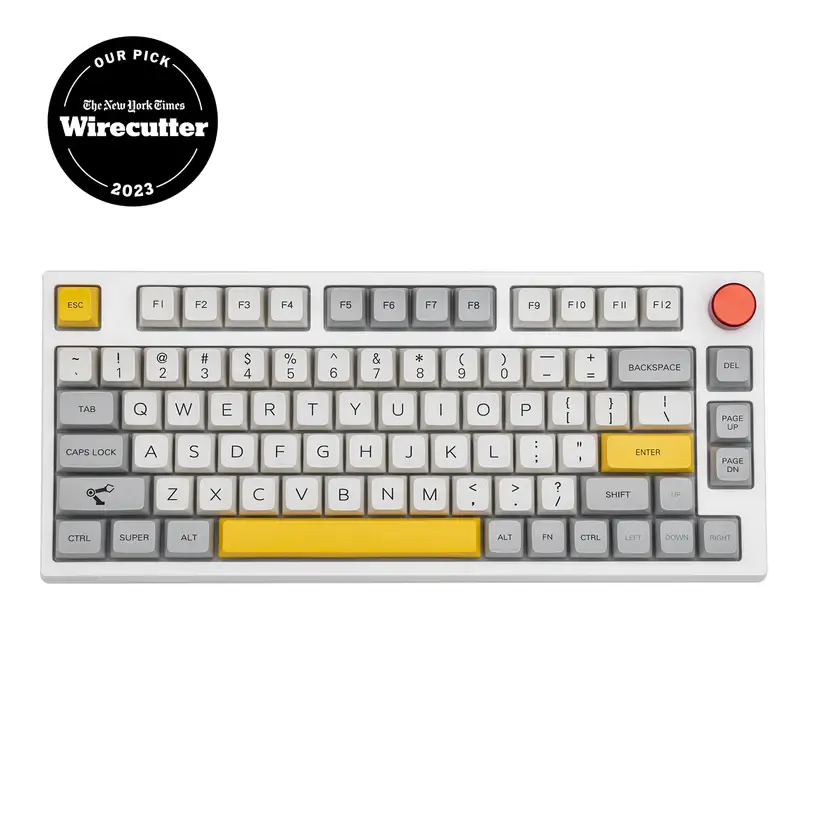
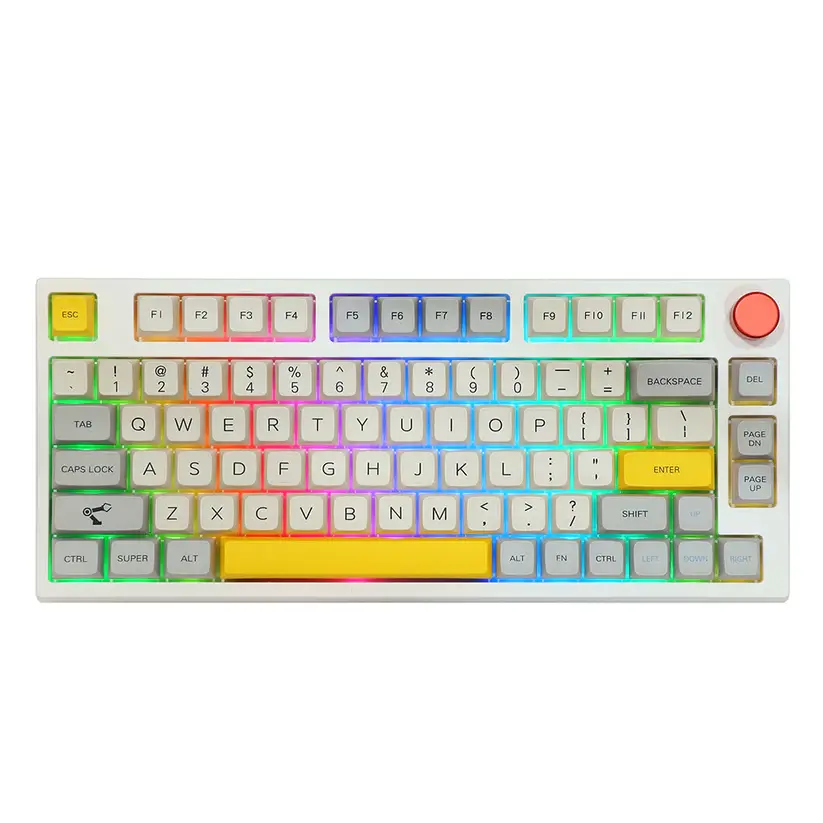
The Epomaker TH80 Pro is a wireless 75% mechanical keyboard that tries to give you enthusiast features, hot-swap switches, a gasket-mounted feel, PBT keycaps, and triple connectivity, at a mainstream price. For most people who type and browse, it delivers. For competitive gamers and anyone who needs deep software control, it has real limits. Here is the full picture after living with it.

⚡ Verdict

A strong value pick for typists and multi-device users who want a comfortable wireless 75% out of the box. Skip it if you need low-latency competitive gaming or VIA and QMK remapping. Rating: 4 out of 5.

Epomaker TH80 Pro 75% mechanical keyboard
The Epomaker TH80 Pro is a wireless 75% board with a rotary knob.

Specifications

Layout75% with rotary knob (around 80 to 84 keys)
SwitchesHot-swappable (5-pin), ships with Epomaker or Gateron options
KeycapsPBT dye-sublimated
MountingGasket-mounted with sound-absorbing foam
BacklightSouth-facing per-key RGB
ConnectivityBluetooth 5.0, 2.4GHz wireless, USB-C wired (tri-mode)
SoftwareEpomaker driver (Windows); no VIA or QMK
CompatibilityWindows and macOS
Battery4,000 mAh; owners report weeks between charges with lighting low
PriceCheck the current listing through the button above

Design and build

The TH80 Pro is a compact 75% board, so it keeps the function row and arrow keys but drops the numpad, which frees up desk space and brings your mouse closer. There is a rotary knob in the top right for volume and other controls, and the case feels solid with no obvious flex.

The keycaps are PBT dye-sublimated, which means they stay matte and resist the greasy shine that cheaper ABS keycaps develop over time. It is a genuinely nice set for the price, and the legends are clean.

Epomaker TH80 Pro side profile showing the case and keycaps
PBT dye-sub keycaps and a solid case give it a more premium feel than the price suggests.

Typing experience

This is where the TH80 Pro earns its keep. The gasket-mounted plate and internal foam give the typing feel a soft, cushioned bottom-out instead of a hard, hollow tap. Out of the box it sounds fuller and quieter than most boards at this price, without any modding.

Because the switches are hot-swappable, you are not locked into what it ships with. If the stock feel is not for you, you can pull the switches and press in new ones with no soldering. If you are deciding between switch types first, our guide to tactile vs linear switches is a good starting point, and you can improve the sound further with our switch lubing guide.

Wireless and connectivity

The TH80 Pro is tri-mode. You can connect over Bluetooth 5.0 to as many as three devices and switch between them, use the 2.4GHz USB dongle for a more stable wireless link, or plug in over USB-C. Moving between a work PC, a laptop, and a tablet is quick, which makes it a good fit for a multi-device desk.

Bluetooth is convenient but adds a little latency, so for anything time-sensitive use the 2.4GHz dongle or a cable. That is normal for wireless keyboards, not a fault unique to this one.

Battery life

The 4,000 mAh battery is one of the board’s real strengths, and how long it lasts depends almost entirely on the RGB lighting. With the backlight off or low, owners regularly report going weeks, in some cases close to a month, between charges. Run the RGB at full brightness and it drains far faster, so turning the lighting down is the easy way to stretch it. You can always fall back to the cable while it charges.

Software

This is the weakest part of the package. The TH80 Pro uses Epomaker’s own driver rather than the open VIA or QMK standard that many enthusiasts prefer. The software works for remapping keys, setting macros, and changing lighting, but the interface is clunky and less flexible than VIA. If deep, precise customization is a priority, this is the main thing to weigh before buying.

Gaming performance

For casual and mid-level gaming, the TH80 Pro is fine, especially wired or on the 2.4GHz dongle. For competitive play, it is not the right tool. Wireless latency is higher than a dedicated gaming board, and there is no rapid trigger or adjustable actuation. If fast shooters are your focus, a wired board or a magnetic-switch keyboard, like the picks in our best Akko keyboards guide, will serve you better.

What buyers say

We read through owner reviews and hands-on coverage to see how the TH80 Pro holds up beyond one desk. A few themes come up again and again.

What owners praise: the sound and feel out of the box, the value at around $99, and especially the battery. Several reviewers report going weeks, in some cases close to a month, between charges with the lighting kept low, backed by the 4,000 mAh cell.

Common complaints: Bluetooth can be slow to reconnect when the board wakes, the Epomaker software feels sluggish moving between menus, and the keycaps do not print the secondary functions, so you have to memorize shortcuts. A smaller group report quality-control and support issues, from glitchy keys to slow warranty help, so it is worth buying from a seller with an easy return path.

Pros and cons

✅ Pros

  • Tri-mode wireless plus wired, easy multi-device switching
  • Hot-swappable switches, no soldering to change the feel
  • Gasket mount and foam give a soft, full sound out of the box
  • PBT dye-sub keycaps that resist shine
  • Rotary knob and per-key RGB
  • Strong value for the feature set

❌ Cons

  • Epomaker software is clunky, with no VIA or QMK support
  • Legends can be hard to read in a dark room
  • Wireless latency is not ideal for competitive gaming
  • Battery drains quickly with RGB at full brightness
  • Fewer stock switch options than some rivals

Who should buy it, and who should skip it

Buy it if you mostly type, want a comfortable wireless 75% that sounds good without modding, and like the idea of switching between a PC, laptop, and tablet. At its price, it is one of the easier boards to recommend for everyday use.

Skip it if you play competitive games and need the lowest latency, you want full VIA or QMK remapping, or you need a numpad. Those needs point to a different board.

Alternatives worth considering

  • Want VIA and QMK: a Keychron V1 gives you full open-source remapping in a similar 75% size, usually for less, though it is wired.
  • Want competitive gaming: a magnetic-switch board with rapid trigger, such as the picks in our best Akko keyboards guide, is the better tool.
  • Not sure on size: our keyboard sizes and types guide helps you decide before you commit.

Final verdict

The Epomaker TH80 Pro is a lot of keyboard for the money. You get a gasket-mounted 75% with hot-swap switches, PBT keycaps, a knob, and triple connectivity, and it types and sounds good straight out of the box. The catches are the clunky software with no VIA or QMK, and wireless latency that rules it out for serious competitive gaming. If those are not deal-breakers for you, it is an easy, comfortable board to live with, and a genuine value at its price.

Frequently asked questions

Is the Epomaker TH80 Pro good for gaming?

It is fine for casual and mid-level gaming, especially wired or on the 2.4GHz dongle. For competitive play it falls short, because wireless latency is higher than a dedicated gaming board and there is no rapid trigger or adjustable actuation. Serious gamers should look at a wired or magnetic-switch board.

Is the TH80 Pro hot-swappable?

Yes. It uses hot-swap sockets, so you can pull the switches out and press new ones in with no soldering. That lets you change how the board feels later without buying a new keyboard.

Does the TH80 Pro support VIA or QMK?

No. It relies on Epomaker’s own driver software for remapping, macros, and lighting. That software works but is less flexible than VIA, so if open-source remapping matters to you, this is the main limitation to weigh.

How is the battery life?

It depends heavily on the RGB lighting. With the backlight off or low, it lasts for days of normal use. At full brightness it drains much faster. Turning the lighting down is the simplest way to extend it, and you can use it wired while it charges.

Does it work with Mac?

Yes. The TH80 Pro works with both Windows and macOS and can pair with several devices over Bluetooth, so switching between a PC and a Mac is straightforward. The configuration software is best supported on Windows.


We revisit our reviews as firmware, pricing, and competing models change, so this verdict stays current.

Written by Elizabeth · Published August 18, 2024
Reviewed & Updated by Olivia · Updated on July 27, 2026

⚡ Quick answer

Most of the world types on QWERTY, arranged in the 1870s to keep typewriter bars from jamming, not to slow you down. Alternatives like Dvorak and Colemak can reduce finger travel but take weeks to relearn. Separately, your keyboard is built to a physical standard, usually ANSI (US) or ISO (Europe), which mainly changes the Enter and left-Shift keys. If you just want a smaller board, that is size, not layout, and our keyboard sizes guide covers it.

“Keyboard layout” gets used for two completely different things, which is why the topic feels confusing. It can mean the arrangement of the letters (QWERTY, AZERTY, Dvorak, Colemak) or the physical shape of the keys (ANSI vs ISO). This guide covers both in plain English, so you can tell what you actually have and whether a different layout is worth trying.

The two meanings of “layout”

  • Character layout is where the letters and symbols sit: QWERTY, AZERTY, QWERTZ, Dvorak, Colemak. This is software, so you can change it on any keyboard without buying new hardware.
  • Physical layout is the shape and position of the keys: ANSI, ISO, or JIS. This is the hardware, so it is fixed when you buy the board and changes which keycap sets fit.

Almost every “which layout is best” argument is really about one of these two. Keep them apart and the jargon gets simple.

Character layouts: where the letters sit

QWERTY, the one almost everyone uses

QWERTY is named for the first six letters on the top row. The popular story that it was designed to “slow typists down” is a myth. It was actually arranged to separate common letter pairs so the type bars on 1870s typewriters were less likely to clash and jam. It stuck around because everyone learned it and every device ships with it, not because it is the most efficient possible arrangement. For nearly everyone it is the right choice, simply because it is everywhere.

AZERTY and QWERTZ, the regional cousins

AZERTY is the French and Belgian standard, tweaked so common French characters and accents are easier to reach. QWERTZ is used in Germany and much of Central Europe, swapping Z and Y (Z is far more common in German) and adding easy access to umlauts. If you type mainly in those languages they make sense; otherwise there is no reason to switch.

Dvorak, the efficiency classic

Dvorak rearranges the keys so the most-used letters sit on the home row, which cuts finger travel and, in theory, strain. Devotees love it. The catch is the relearning curve: for a few weeks you type like a beginner, and every other keyboard you touch is now “wrong.” It can help a dedicated typist over the long run, but the switching cost is real.

Colemak, the modern middle ground

Colemak aims for most of Dvorak’s efficiency while changing far fewer keys, so it is much easier to learn coming from QWERTY, and common shortcuts like copy and paste stay in place. If you want an optimized layout without a total relearn, Colemak is the friendlier option. There is also Colemak-DH, a small refinement many current users prefer.

Physical standards: ANSI vs ISO vs JIS

This is the hardware side, and it matters most when buying keycaps.

StandardCommon inKey differences
ANSIUnited StatesHorizontal bar-shaped Enter, long left Shift. Widest keycap support.
ISOEuropeTall L-shaped Enter, shorter left Shift with an extra key, AltGr for accents. Fewer keycap sets.
JISJapanExtra keys for Japanese input. Least keycap support.

If you buy custom keycaps, check ANSI or ISO compatibility before ordering, since an ANSI set will leave gaps on an ISO board and vice versa.

Should you switch layouts?

Be honest about the trade-off. Switching your character layout to Dvorak or Colemak can pay off for someone who types all day and is willing to spend a few slow weeks retraining. For most people, the disruption of relearning, plus the pain of every shared device still being QWERTY, is not worth it. Switching your physical standard (ANSI vs ISO) is a hardware decision: pick the one that suits your language and the keycaps you want, and you are set.

How to change your character layout

You do not need a new keyboard to try a different character layout, because it is a software setting:

  • Windows: Settings, then Time & language, then Language & region, add a layout and switch with a hotkey.
  • macOS: System Settings, then Keyboard, then Input Sources, add a layout and switch from the menu bar.
  • Linux: set it in your desktop environment’s keyboard settings or with setxkbmap.

Enthusiast keyboards that support QMK and VIA can even store remaps on the board itself, though the OS setting is all most people need.

Frequently asked questions

What is the most common keyboard layout?

QWERTY is by far the most common character layout worldwide, and ANSI and ISO are the most common physical standards (ANSI in the US, ISO across much of Europe). If you have never changed anything, you almost certainly use QWERTY on either an ANSI or ISO board.

Is Dvorak or Colemak actually faster than QWERTY?

They can reduce finger travel and feel more comfortable over time, but they do not guarantee a big speed increase, and any gains come only after weeks of retraining. Colemak is easier to learn from QWERTY than Dvorak because it moves fewer keys.

What is the difference between ANSI and ISO keyboards?

The main differences are the Enter key (a horizontal bar on ANSI, a tall L-shape on ISO) and the left Shift, which is shorter on ISO with an extra key beside it. ISO also usually has an AltGr key for accented characters. The choice mainly affects language support and which keycap sets fit.

Do I need a special keyboard to use Dvorak or Colemak?

No. Character layouts are a software setting you can turn on in your operating system on any keyboard. Some people relabel or swap keycaps to match, but it is optional, since the layout is defined by software, not the printed legends.

Is keyboard layout the same as keyboard size?

No, and mixing them up is common. Size (full-size, TKL, 65%) is about how many keys and how much desk space, covered in our keyboard sizes guide. Layout is about the arrangement of the keys and the physical standard.

The bottom line

For almost everyone, the answer is simple: stick with QWERTY on whichever physical standard (ANSI or ISO) matches your region and language. It is universal, and you never have to think about it. If you type for a living and want to invest in comfort, Colemak is the easiest efficient alternative to learn, with Dvorak the classic choice for the truly committed. And when you buy keycaps, match them to your physical standard so everything fits.


We keep our guides updated as keyboard standards and tools evolve.

⚡ Quick Answer

Keyboard “size” is really about how many keys you keep. Full-size (104 keys) has everything; each smaller size drops a section: first the numpad, then the function row, then the arrows, all the way down to tiny 40% boards. Most people are happiest on a TKL (no numpad) or 65% (keeps arrows, ditches the rest). Switch type is the other half of the decision: linear for gaming, tactile for typing, clicky if you love the sound and nobody sits near you.

The first keyboard I bought after my flat membrane one was a 60%. I loved how much desk it freed up, though I spent the first week fumbling for arrow keys that weren’t there. That’s the whole game with keyboards: every size is a trade between how compact it is and how many keys you can hit without a shortcut. Once you get that, the jargon stops being scary.

This guide walks through every size, the switch types underneath the keys, and the handful of other decisions (mechanical vs membrane, wired vs wireless, layout) that actually change how a board feels.

Keyboard Sizes, From Full-Size Down to 40%

Think of sizes as a ladder. You start with everything, then knock off one cluster of keys at a time. Here’s the whole ladder at a glance before we get into each rung.

SizeKeys (approx)What it keeps / dropsBest for
Full-size (100%)104Everything, including numpadData entry, accounting, spreadsheets
1800 / 96%~100Numpad kept, but gaps removedNumpad users short on desk space
TKL (80%)87Drops the numpadThe all-rounder for most people
75%~84Function row + arrows, no gapsLaptop-style compactness
65%~68Keeps arrows, drops function rowCompact without losing arrows
60%~61Drops arrows and function rowMinimal desks, travel
40%~47Letters and a few mods onlyHardcore minimalists, hobbyists

A full-size board is what most people picture: letters, numbers, function row, arrows, and a numpad on the right. If you punch numbers all day, the numpad earns its space. If you don’t, it’s mostly a slab of plastic pushing your mouse further from your hand.

Drop the numpad and you get a tenkeyless (TKL). This is the size I recommend to almost everyone. You keep every key you actually use, your mouse comes six inches closer, and your shoulder thanks you after a long day.

The 75% takes a TKL and shoves everything together, no empty space between clusters. It’s the layout that feels most like a laptop, which makes it an easy jump if that’s what you’re used to.

💡 The 65% is the sweet spot most guides skip. It keeps the arrow keys (the thing people miss most on smaller boards) while cutting the function row you rarely touch. If you’re torn between “small” and “usable,” this is usually the answer. We break it down fully in our 65% keyboard guide.

Go one step smaller and you hit the 60%: no arrows, no function row, no numpad. It’s genuinely lovely on a clean desk and it’s the darling of the custom-keyboard world. But be honest with yourself: you’ll reach the arrows through a function layer, and for the first week that’s annoying.

The 40% is the deep end. Letters, a couple of modifiers, and everything else lives on layers you hold to access. It’s polarizing. Try a 60% first; if you finish that and want less, then a 40% is calling.

Keyboard size comparison showing multiple mechanical keyboards of different sizes
Multiple mechanical keyboards showing the size differences between full-size, TKL, 65%, and 60% layouts.

Switch Types: The Real Reason a Keyboard Feels the Way It Does

Size decides the shape. Switches decide the feel, and they matter more than most first-time buyers expect. There are three families, and the difference between them is night and day.

Linear switches move straight down, smooth the whole way, no bump. They’re quiet-ish and consistent, which is why competitive gamers lean on them. Cherry MX Red and Gateron Red are the classics, both around 45g. Gateron’s tend to feel a touch smoother out of the box.

Tactile switches add a small bump partway down, right where the key registers. You feel the keystroke land, which is reassuring for typing. Cherry MX Brown is the famous one (a ~55g bump over a 45g press), though plenty of people prefer a sharper bump like a Boba U4T.

Clicky switches are tactile switches with an added click mechanism: the loud, satisfying “click-clack” of Cherry MX Blue or Kailh Box White. They sound fantastic and feel decisive. They are also the switch that gets people banned from open-plan offices. Love them at your own desk, at home, alone.

One more thing worth knowing: optical and analog switches are the newer gaming tech to watch. Optical switches register with light instead of metal contact, shaving latency; analog switches read how far you press, which lets you do things like walk-vs-run from one key. If you want to go deeper, we compare the two most common families in tactile vs linear switches. Many modern boards are also hot-swappable, so you can change switches later without soldering.

Mechanical vs Membrane: Is the Upgrade Worth It?

Yes, but let me be fair to membrane first. A membrane keyboard presses each key onto a rubber dome that completes a circuit. They’re cheap, quiet, and spill-tolerant, and the one that came free with your PC is almost certainly one. For light use, they get the job done.

A mechanical keyboard gives every key its own spring-loaded switch. That’s what buys you the crisp feel, the consistency from key to key, the ability to press several keys at once without ghosting, and switches rated for 50 million-plus presses. The trade-offs are real: they cost more and, depending on switch, make more noise.

My honest take after using both for years: if you type or game for more than an hour a day, mechanical is worth it. If the keyboard is for occasional email on a shared desk, a good membrane is fine. Still curious whether membrane deserves its bad reputation? We dug into exactly that in are membrane keyboards really that bad?

Layouts: QWERTY, AZERTY, Dvorak, Colemak

“Layout” here means where the letters sit, which is separate from size. QWERTY is what almost everyone uses. The old story that it was designed to “slow typists down” is a myth. It was actually arranged to separate common letter pairs so the typebars on 1870s typewriters wouldn’t jam. It stuck around because everyone learned it.

AZERTY is the French/Belgian cousin, tweaked for typing French. Dvorak and Colemak are the efficiency alternatives. Dvorak puts the most-used letters on the home row; Colemak moves only a handful of keys, so it’s far easier to learn from QWERTY. The catch is the relearning curve: weeks of typing like a beginner. Genuinely useful for a dedicated typist; overkill for most.

Ergonomics: The Part I Ignored Until My Wrists Complained

The biggest change is a split or ergonomic keyboard, which lets each hand sit at a natural angle instead of forcing your wrists inward. The second is avoiding positive tilt. Most keyboards prop up at the back, which bends your wrists upward. A flat or slightly negative tilt keeps them neutral, and a decent wrist rest does a lot here too.

Size plays a quiet role, as well. A smaller board (TKL or 65%) puts your mouse closer, so your right shoulder isn’t reaching sideways all day. If you’re at the keyboard for hours, treat comfort as a feature, not an afterthought.

Wired vs Wireless

This used to be an easy call for gamers: wired, always. It isn’t anymore. Modern 2.4GHz wireless keyboards (using a little USB dongle) are effectively lag-free. Bluetooth is the exception: convenient for multi-device switching but with enough latency that it’s better kept for typing on a tablet than for gaming.

Wireless wins on tidiness and flexibility: no cable, and many boards pair with three devices. The price is battery management. Wired wins on never-think-about-it reliability and slightly lower cost. If your keyboard lives on one desk, wired is perfectly sensible; if you move around, a good 2.4GHz wireless board gives up almost nothing.

So Which Keyboard Should You Actually Get?

Strip away the options and it comes down to three questions:

  • Do you need a numpad? Yes → full-size or 96%. No → TKL, 65%, or smaller.
  • Typing or gaming? Mostly typing → tactile switches. Mostly gaming → linear or optical. Both → tactile is the safe middle.
  • How much noise can you get away with? Shared space → linear or silent tactile. Home alone and you love the sound → clicky.

If you want a single no-regrets recommendation: a hot-swappable 65% or TKL with tactile switches. It fits most desks, suits most uses, and the hot-swap sockets mean you can change the switches later once you know what you like. Start there and you’ll rarely wish you’d bought something else.

Frequently Asked Questions

What keyboard size is best for most people?

A TKL (tenkeyless, 87 keys) suits most people. It drops the rarely-used numpad while keeping the function row, arrows, and everything else. If you want something more compact but still want arrow keys, a 65% is the next best step down.

What is the difference between a 60% and a 65% keyboard?

A 65% keyboard keeps dedicated arrow keys; a 60% removes them, so you access arrows through a function layer. Both drop the numpad and function row. The 65% is easier to live with day to day; the 60% is slightly smaller and cleaner-looking.

Are mechanical keyboards better than membrane?

For anyone typing or gaming more than an hour a day, yes. Mechanical keyboards feel more consistent, last far longer (50 million-plus presses per switch), and handle simultaneous key presses better. Membrane keyboards are cheaper and quieter, and are fine for light, occasional use.

Which switch type is best for gaming vs typing?

Linear switches (like Cherry MX or Gateron Red, ~45g) are preferred for gaming because they’re smooth and fast. Tactile switches (like Cherry MX Brown) suit typing because the bump confirms each keystroke. If you do both, tactile switches are the safe all-round choice.

Is wireless bad for gaming?

Not anymore. A 2.4GHz wireless keyboard (using a USB dongle) is effectively lag-free and fine for competitive gaming. Bluetooth adds more latency, so it’s better kept for typing and multi-device use than for fast-paced games.

What is a hot-swappable keyboard?

A hot-swappable keyboard lets you pull switches out and press new ones in without soldering. It means you can change how your keyboard feels (linear to tactile, for example) at any time, which makes it the most future-proof choice for a first mechanical board.


Last Updated: July 24, 2026

By: Elizabeth & Olivia

We regularly review and update our guides to ensure keyboard recommendations, specs, and switch information stay current with the latest releases and market changes.

Written by Elizabeth · Published June 29, 2023
Reviewed & Updated by Olivia · Updated on July 27, 2026

⚡ Quick answer

No, membrane keyboards are not bad, they are just different. For light typing, browsing, and casual use they are perfectly fine, and they are cheaper, quieter, and more spill-resistant than mechanical boards. Mechanical keyboards win on feel, durability, and pressing many keys at once, which matters most for heavy typists and gamers. The “membrane is terrible” reputation is mostly enthusiast bias, not the full story.

If you have spent any time in keyboard communities, you have seen membrane keyboards dismissed as junk. The truth is more balanced. They are the right tool for some people and the wrong one for others. Here is the honest breakdown.

How a membrane keyboard works

Under each key sits a soft rubber dome. Press the key and the dome collapses, pushing a contact down onto a printed membrane sheet that completes the circuit and registers the keypress. The rubber dome is also what springs the key back up. One flexible sheet handles the whole board, which is exactly why they are cheap to make. That is the core difference from a mechanical keyboard, where every key has its own separate spring-loaded switch.

Where membrane keyboards are actually good

  • Cheap. They cost a fraction of a mechanical board, and the free one that came with your PC is almost certainly a membrane.
  • Quiet. The rubber dome muffles the sound, which is great for shared spaces and offices.
  • Spill-resistant. The sealed membrane sheet shrugs off small spills and dust far better than exposed switches.
  • Light and slim. Easy to travel with and to tuck away.

For someone who types a bit, browses, and does not care about typing feel, a good membrane keyboard genuinely does the job.

Where mechanical keyboards genuinely win

  • Consistent, satisfying feel. Every key feels the same and gives a crisp response, where a membrane can feel mushy and uneven.
  • Durability. Mechanical switches are rated for 50 million or more presses; rubber domes wear out and grow mushier over a year or two.
  • Many keys at once. Good mechanical boards register several simultaneous presses without dropping inputs, which cheap membranes struggle with (called ghosting). This matters for gaming.
  • Choice and repairability. You can pick your switch feel, swap keycaps, and on hot-swap boards even change switches later.

The real downsides of membrane

To be fair to the critics, membranes do have honest flaws. The typing feel is softer and less consistent, they get mushier as the rubber ages, and cheaper models drop inputs when you press several keys quickly. For someone who types for hours or games competitively, those things add up.

What about mecha-membrane and scissor switches?

There is a middle ground. Mecha-membrane and similar hybrids try to add a clicky, more tactile feel on top of a membrane, landing between the two types. Scissor-switch keyboards, common on laptops and slim boards, are a refined membrane with a more stable, low-profile key. Neither matches a true mechanical, but both feel better than a basic rubber dome.

So who should use which?

  • Stick with membrane if you want something cheap, quiet, and low-maintenance, you type casually, or you need spill resistance in a rough environment.
  • Upgrade to mechanical if you type or game for more than an hour a day, you care about how a keyboard feels, or you want a board that lasts for years and can be customized. Our keyboard sizes and types guide is a good next step.

Frequently asked questions

Are membrane keyboards bad for gaming?

Cheap ones can drop simultaneous inputs (ghosting), which hurts fast games. Better membranes and gaming models handle it, but mechanical boards are more reliable for serious gaming.

Do membrane keyboards last as long as mechanical?

Usually not. Rubber domes wear and grow mushier over time, while mechanical switches are rated for tens of millions of presses.

Are membrane keyboards good for typing?

For light, casual typing, yes. For long sessions, mechanical feels more consistent and less tiring for most people.

Why do people say membrane keyboards are bad?

Mostly because enthusiasts compare them to premium mechanical boards. Against that bar they feel mushy, but as everyday tools they are perfectly capable.

The bottom line

Membrane keyboards are not bad, they are budget-friendly, quiet, and fine for everyday use. Mechanical keyboards are the upgrade if you type or game a lot and want better feel, durability, and reliability. Match the tool to how you actually use a keyboard, and neither choice is wrong.


We keep our guides updated as keyboard technology and value change.

Written by Elizabeth · Published June 22, 2023
Reviewed & Updated by Olivia · Updated on July 28, 2026

There is no single best mechanical keyboard, only the best one for how you type, game, and work. The good news is that finding it comes down to four simple choices. This page walks you through those choices and points you to our in-depth guide for each, so you can zero in on the right board without the guesswork.

⚡ Quick Answer

Pick your keyboard in four steps: choose a size (full-size, TKL, 75%, or 65%), choose a switch feel (linear, tactile, or clicky), decide wired or wireless, then set a budget. A 75% or TKL board with smooth linear or tactile switches suits most people. If you want full control over feel and sound, building your own is easier than it looks. Use the guides below to lock in each choice.

How to Choose in Four Steps

  1. Size and layout. This decides the footprint and which keys you keep. Most people are happiest with a TKL or 75%.
  2. Switch feel. Linear (smooth), tactile (a bump), or clicky (a bump plus a click). This shapes how the board feels and sounds more than anything else.
  3. Wired or wireless. Wireless adds convenience; wired is simplest and has zero latency worries. Many boards now do both.
  4. Budget. Solid prebuilts start around $60–100. Enthusiast and custom builds climb from there, with most of the money best spent on switches and keycaps.

Step 1: Choose Your Size

Layout is the first fork in the road because it decides how much desk space the board takes and which keys you keep. Start with our plain-English guide to keyboard sizes and types, then dig into the layout that fits you:

  • Full-size, everything including the number pad, best if you enter numbers all day.
  • TKL (tenkeyless), the full layout minus the numpad, familiar and roomy.
  • 75%, nearly every key in a compact body, one of the most popular sizes.
  • 65%, compact with arrow keys, a great first small board.

Torn between the two most popular sizes? Our TKL vs 75% comparison settles it. If you are curious about key arrangements beyond size, the keyboard layouts guide covers QWERTY, Dvorak, ANSI, and ISO.

Step 2: Choose Your Switch Feel

Switches define how a keyboard feels and sounds. Start with tactile vs linear switches to find your camp, then pick the best switch for your use:

A hot-swap keyboard lets you change switches later without soldering, so you are never locked into your first choice.

Step 3: Explore by Brand and Model

Once you know the size and switch you want, these brand guides and hands-on reviews help you pick an actual board:

Step 4 (Optional): Build Your Own

The best-feeling keyboards are often the ones you tune yourself. It is more approachable than it sounds, especially with a hot-swap kit. Our custom keyboard build guide walks through the whole process, and these guides cover the key steps:

Frequently Asked Questions

What size mechanical keyboard should I get?

For most people a TKL or 75% is the sweet spot: compact but still with a function row and arrow keys. Choose full-size if you use the number pad daily, or 65% and smaller if desk space is tight. Our sizes guide compares them all.

Which switch type is best?

There is no single best. Linear switches are smooth and popular for gaming, tactile switches give a bump many typists love, and clicky switches add sound. Read tactile vs linear to find your preference, and remember a hot-swap board lets you change your mind later.

Are wireless mechanical keyboards worth it?

Yes, for most users. Modern wireless boards have low latency and long battery life, and many also work wired. Choose wired-only if you want the simplest possible setup or compete at the highest level.

Should I buy a prebuilt or build my own?

Buy a prebuilt if you want a great keyboard with zero effort; a hot-swap prebuilt still lets you swap switches later. Build your own if you want full control over feel and sound. Our build guide shows how approachable it is.

What is the difference between mechanical and membrane keyboards?

Mechanical keyboards use an individual switch under each key, giving a better feel and far longer life. Membrane keyboards use a single rubber layer, which is cheaper but mushier. See our honest take on membrane keyboards.


We are expanding this hub with dedicated best-by-budget, gaming, and wireless roundups. Bookmark it and check back as new guides go live.

Written by Elizabeth · Published June 21, 2023
Reviewed & Updated by Olivia · Updated on July 28, 2026

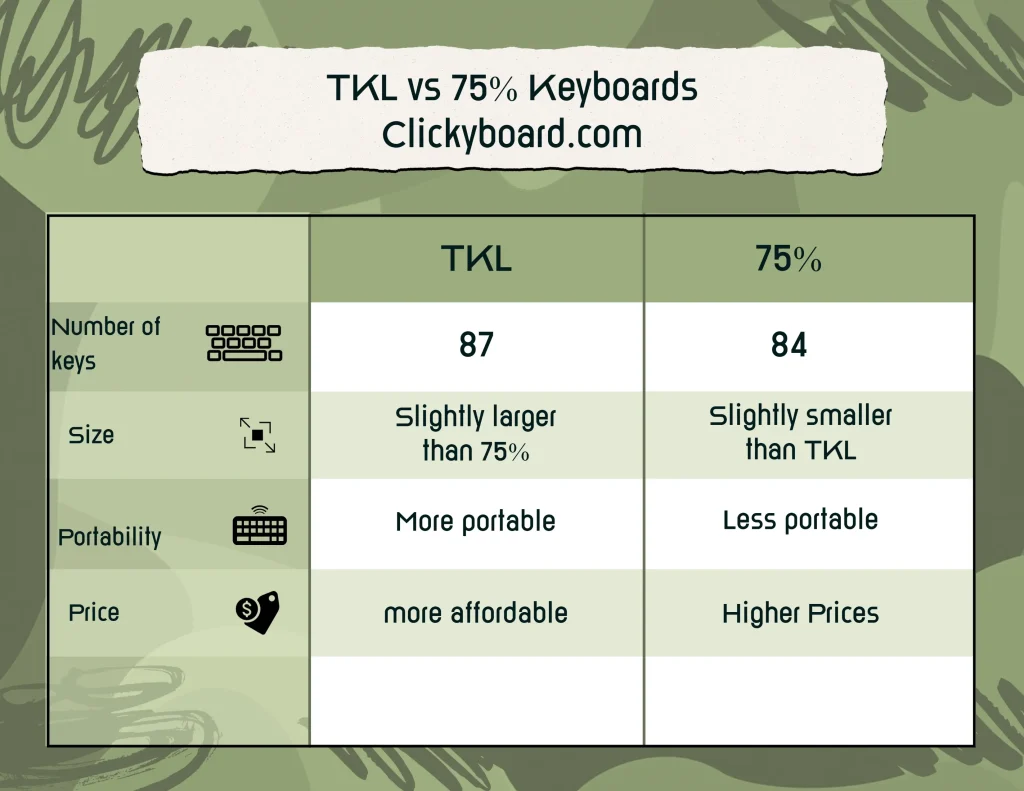
TKL and 75% keyboards both drop the number pad to save desk space, but they get there in different ways. A TKL keeps the classic full-size layout minus the numpad, with everything spaced out. A 75% squeezes almost the same keys into a smaller footprint by packing them together. Here is how to choose.

⚡ Quick Answer

Choose a TKL if you want the familiar, spaced-out feel of a full-size board with isolated arrow keys and a full navigation cluster, just without the numpad. Choose a 75% if you want the smallest board that still keeps the function row and arrow keys, and you do not mind the keys sitting closer together. Both skip the numpad, so if you crunch numbers often, neither may suit you.

What Is a TKL Keyboard?

A TKL (tenkeyless) keyboard removes the numeric keypad from a full-size layout, leaving roughly 87 keys at about 80% of the width. Everything else stays exactly where a full-size board puts it: a spaced function row, isolated arrow keys, and the full six-key navigation cluster (Insert, Home, Page Up, Delete, End, Page Down). If you learned to type on a standard keyboard, a TKL feels instantly familiar with more desk room for your mouse.

What Is a 75% Keyboard?

A 75% keyboard fits almost the same keys, about 84 of them, into a noticeably smaller body by removing the gaps between key groups. You still get a function row and dedicated arrow keys, but the navigation cluster is trimmed and the keys are packed tightly together, often in a single block. It is the most compact layout that still keeps the function row, which is why it has become one of the most popular sizes. For a deeper look, see our guide to 75% keyboards.

TKL vs 75% at a Glance

TKL (80%)75%
Keys~87~84
Number padNoNo
Function rowYes, spacedYes, condensed
Arrow keysIsolatedTucked in
Nav clusterFull (6 keys)Partial
FootprintLargerSmaller
Layout feelFamiliar, spaciousCompact, tight
A side-by-side comparison of a TKL keyboard and a 75% keyboard layout

Why Choose a TKL

  • Familiar layout. Everything sits where you expect, so there is no learning curve coming from a full-size board.
  • Isolated arrow and nav keys. The gaps make it easy to find keys by feel, which helps for editing and productivity work.
  • More desk space than full-size. Dropping the numpad frees room for your mouse without changing how the main keys feel.
  • Easy to travel with. Lighter and smaller than a full-size board, but still comfortable for long sessions.

Why Choose a 75%

  • Smaller footprint. Noticeably more compact than a TKL while keeping the function row and arrows.
  • Keeps the essentials. You lose almost nothing important, just the spacing and part of the nav cluster.
  • Clean, dense look. The tightly packed layout has a tidy, modern aesthetic many people love.
  • Huge selection. The 75% size is extremely popular, so there are plenty of boards and keycap sets to choose from.

Which Should You Pick?

It comes down to how much you value spacing versus size. Choose a TKL if you want the reassuring, spread-out feel of a normal keyboard and reach for the navigation cluster often. Choose a 75% if desk space is tight or you simply prefer a smaller, denser board and can adjust to keys sitting closer together. Neither is objectively better; the best one is the layout you find most comfortable.

A popular 75% starting point is the Keychron K2, a well-priced hot-swappable board with wired and wireless modes. If you are still weighing sizes more broadly, our guide to keyboard sizes covers every layout from 40% to full-size.

Frequently Asked Questions

Is a 75% keyboard smaller than a TKL?

Yes. A 75% keyboard fits a similar number of keys into a smaller body by removing the gaps between key groups, so it takes up less desk space than a TKL, which keeps the spaced full-size arrangement minus the numpad.

Do both TKL and 75% keyboards have arrow keys?

Yes, both keep dedicated arrow keys. On a TKL they are isolated with space around them; on a 75% they are tucked in tight against the surrounding keys.

Which is better for gaming?

Both are great for gaming since removing the numpad brings your mouse closer and reduces shoulder strain. A TKL gives a little more spacing, while a 75% frees up the most desk space. Pick by feel.

Will my keycap set fit a 75% or TKL board?

Most standard keycap sets cover TKL layouts easily. Some 75% boards use non-standard bottom-row or modifier sizes, so check that your chosen set lists 75% support before buying.


We keep our layout guides updated as new board sizes and releases appear.

Written by Elizabeth · Published June 15, 2023
Reviewed & Updated by Olivia · Updated on July 28, 2026

Disclosure: This review contains affiliate links. If you buy through them we may earn a small commission at no extra cost to you.

⚡ Verdict

The Akko MOD 007 V2 is a 75% gasket-mount keyboard kit with a CNC aluminum case, a hot-swap PCB, and both aluminum and polycarbonate plates in the box, build quality that undercuts most rivals at its price. If you want your first custom-feel board without a full custom-build project, it is one of the easiest recommendations we can make. Just know it is a kit you assemble, it is wired only, and the stock ABS keycaps will shine over time.

What It Is

The MOD 007 V2 is Akko’s enthusiast-leaning 75% board, sold as a DIY kit. You get the case, plates, PCB, stabilizers, and foam, and you add your own switches and keycaps (Akko also sells prebuilt versions). The headline is the value: a machined aluminum case and gasket mount at a price where most boards still use plastic. It is aimed at people who want that premium, flexy custom feel without sourcing every part themselves.

Build and Design

Out of the box the MOD 007 V2 feels the part. The CNC aluminum case is dense and solid, with none of the hollow flex you get from cheaper boards, and at around 1.4 kg it stays planted on the desk. The gasket mount softens each keystroke and, paired with the pre-installed Poron case foam and switch pads, gives a controlled sound with little of the hollow ping older boards suffer from.

The V2 refinements are what make it worth attention. The PCB is slimmed from 1.6 mm to 1.2 mm for more flex, it ships with both an aluminum plate (firmer, sharper) and a polycarbonate plate (softer, deeper), and the silicone gaskets can be swapped for spare Poron ones. In practice that means you can tune the feel and sound to your taste without buying a second board.

Specifications

Layout75% (82 keys, standard ANSI)
CaseCNC-machined aluminum
MountGasket mount (silicone / Poron gaskets)
Plates includedAluminum and polycarbonate
PCB1.2 mm, hot-swap (3/5-pin), screw-in stabilizer support
DampeningPre-installed Poron case foam and switch pads
WeightAbout 1.4 kg
Dimensions320 x 135 x 40 mm
ConnectionWired (USB-C)

Typing Experience

Assembled with a decent linear or tactile switch, the MOD 007 V2 punches well above its price. The gasket mount and thin PCB give a gentle, cushioned flex that takes the harshness out of bottoming out, and the foam keeps the sound tight and clean. Swapping to the polycarbonate plate deepens the sound noticeably, while the aluminum plate keeps things crisp and firm. It genuinely feels like a board costing more than it does.

The screw-in stabilizers are good, though like almost any kit they benefit from a quick lube and tune to fully silence the larger keys. That is normal at this level and part of the fun for many builders.

Pros and Cons

Pros: premium aluminum build for the money, gasket mount with real flex, two plates included, hot-swap PCB, pre-installed quality foam, standard bottom row for easy keycap swaps, multiple colours.

Cons: it is a kit you assemble (switches and keycaps not included on the DIY version), wired only with no wireless option, stock ABS keycaps on the prebuilt will shine over time, and the stabilizers reward a little tuning out of the box.

Who Should Buy It

Buy it if you want your first taste of a premium, gasket-mounted aluminum board without building fully from scratch, and you are happy to drop in switches and keycaps. It is outstanding value for the feel you get.

Skip it if you need wireless, want something that works the moment it arrives with zero assembly or tuning, or you dislike ABS keycaps and do not want to buy a PBT set. For a fully assembled Akko option, see our Akko 3098B review, and browse more in our best Akko keyboards guide.

The Bottom Line

The Akko MOD 007 V2 delivers a genuinely premium typing feel, machined aluminum, gasket flex, and swappable plates, for a price that keeps embarrassing pricier boards. As long as you are comfortable assembling a kit and do not need wireless, it is one of the best value entries into the custom-feel world, and an easy board to recommend.

Frequently Asked Questions

Does the Akko MOD 007 V2 support hot-swapping?

Yes. It has a hot-swap PCB that accepts standard 3-pin and 5-pin MX-style switches, so you can change switches freely with no soldering. It is one of the board’s biggest strengths at this price.

Is the MOD 007 V2 wireless?

No, it is a wired USB-C board. If wireless is a must-have, this is not the right pick; look at a Bluetooth-capable Akko or another brand instead.

What switches should I use with it?

Any standard MX-style switch works. A smooth linear or a tactile like the Akko or Gateron ranges pairs well with the board’s flexy build. Choose based on whether you prefer a smooth or bumpy feel.

How does it differ from the Akko 007 PBT?

The main difference is the keycaps: the MOD 007 V2 ships with ABS keycaps, while the 007 PBT comes with more durable, shine-resistant PBT keycaps. The underlying board is otherwise similar.

Is the Akko MOD 007 V2 worth it?

For the build quality and typing feel, yes. Few boards offer a machined aluminum case, gasket mount, and two plates at this price. Just factor in that it is a kit and, on the DIY version, you supply switches and keycaps.


We update our keyboard reviews as new revisions and colourways are released.

The 65% layout keeps arrow keys and drops almost everything else. That one decision is why it has become the default recommendation for people who want desk space back without giving up the keys they actually reach for. You keep a full alphanumeric block, you keep arrows, and you lose the number pad and the function row.

Quick answer: For most people the Ducky One 3 SF is the one to buy. It sounds and feels right out of the box with no modding. Want to tinker instead? Get the Keychron Q65. On a tight budget, the Royal Kludge RK68 does the job for well under half the price.

What a 65% keyboard actually is

A 65% board has roughly 66 to 68 keys. Compared to a tenkeyless, you lose the function row across the top. Compared to a 60%, you gain a dedicated arrow cluster and usually a short column of navigation keys down the right edge.

That arrow cluster is the whole argument. On a 60% you reach arrows through a function layer, which is fine for typing and irritating for spreadsheets, gaming, and code editing. The 65% adds about an inch of width and removes that friction entirely.

Why people switch to 65%

Mouse room
Losing the number pad moves your mouse hand closer to your body. If you play at low sensitivity, this is the single biggest ergonomic win on the list.

Arrows stay
You keep the navigation keys you use without thinking. Nothing has to be relearned, which is why most people adapt to 65% in a day.

Cheaper to key
Fewer keys means fewer keycaps. A 65% fits most standard keycap sets, and you are not paying for a number pad you never touch.

⚠️ The one real tradeoff: the function row is gone. If you live in F2 for renaming files or hit F5 constantly, you will be holding a Fn key for those. Most people stop noticing within a week. Some never make peace with it, and that is a good reason to stay on a TKL.

The best 65% keyboards

1. Ducky One 3 SF, the best for most people

Ducky’s reputation rests on getting the boring parts right. The case has almost no flex, the stabilizers are better tuned from the factory than most boards at this price, and the doubleshot PBT keycaps will not go shiny in six months.

What makes it the default pick is that it needs nothing. Plenty of keyboards become excellent after you lube the switches and mod the stabilizers. This one is already there when you open the box, which matters if you want a keyboard rather than a project.

Buy it if you want the safest recommendation here and are happy with a wired board.
Skip it if you need wireless, or you specifically want to remap layers with open source firmware.

2. Keychron Q65, the best if you like to tinker

The Q65 is a full aluminium, gasket mounted board that runs QMK and VIA. In practice that means you can remap any key, build layers, and flash the firmware without touching a line of code, using VIA’s drag and drop interface.

It is heavy enough that it does not move on the desk, and the gasket mount gives a softer typing feel than the Ducky. It is also hot swappable, so you can change switches later without a soldering iron.

Buy it if you want to customise layout and switches over time.
Skip it if you want the lightest board on your desk, or you are shopping at the budget end.

3. Glorious GMMK 3 65%, the best modular option

Glorious built the GMMK 3 around swapping parts. Plates, mounting style, and switches can all be changed, and the configurator lets you pick most of that before it ships rather than buying upgrades separately later.

That flexibility is the reason to buy it. If you are not sure yet whether you prefer a stiff plate or a soft one, this is the board that lets you find out without starting over.

Buy it if you expect to keep changing your mind about how it should feel.
Skip it if you want one decision made for you and never revisited.

4. NuPhy Air65, the best for travel

The Air65 uses low profile switches and a thin case, so it sits closer to a laptop keyboard in height than to a normal mechanical board. It connects wirelessly and slips into a bag without adding real bulk.

Low profile is a genuine preference rather than a compromise, and it is worth knowing which side you are on before buying. The travel is shorter and the sound is quieter and clackier. People who love it tend to love it immediately.

Buy it if you move between desks or work from a laptop and want one keyboard for both.
Skip it if you want the deep typing feel of a standard profile board.

5. Royal Kludge RK68, the best budget pick

The RK68 is the board people buy to find out whether they like 65% at all. It is hot swappable and connects wirelessly, which is unusual at this price, and it costs a fraction of everything above it.

The compromises show up where you would expect. The case is plastic and the stock stabilizers rattle. Both are fixable, and lubing the stabilizers on an RK68 is one of the highest value hours you can spend on a cheap keyboard.

Buy it if you are testing the layout or building to a tight budget.
Skip it if you want it to sound good without any work.

6. QwertyKeys Neo65 Core, the enthusiast kit

The Neo65 Core is sold as a kit rather than a finished keyboard. You supply switches and keycaps, and you assemble it. That is the point, and it is why it does not belong on most people’s shortlist.

What you get for the extra effort is a build quality tier above the mainstream boards here, and a keyboard that is exactly what you chose rather than what a brand decided to ship.

Buy it if you have built a keyboard before and want to do it properly.
Skip it if this would be your first mechanical keyboard.

How they compare

KeyboardBest forHot swapWirelessNeeds modding
Ducky One 3 SFMost peopleYesNoNo
Keychron Q65CustomisingYesNoNo
Glorious GMMK 3 65%ModularityYesNoNo
NuPhy Air65TravelYesYesNo
Royal Kludge RK68BudgetYesYesYes
QwertyKeys Neo65 CoreBuilding it yourselfYesNoAssembly required

Watch the model names. Two of these have wireless siblings that are easy to buy by mistake. The Keychron Q65 Max is the wireless version of the Q65, and the GMMK 3 PRO is the wireless version of the GMMK 3. The table above describes the wired models we recommend. Check which one you are adding to the basket.

How to choose

Work through it in this order and the decision usually makes itself.

  1. Do you need wireless? If yes, you are choosing between the Air65 and the RK68, and everything else drops off the list.
  2. Do you want to modify it? Hot swap sockets let you change switches later. Every board here has them, but only the Keychron and the QwertyKeys are built around being taken apart.
  3. How much noise is acceptable? Where you work matters more than the spec sheet. Shared office means linear or silent switches whatever board you pick.
  4. Do you want it finished or fun? The Ducky is finished. The QwertyKeys is fun. Be honest about which you are actually after.

Frequently asked questions

Is 65% too small for gaming?

No, and it is arguably better. You keep WASD and arrows, and the missing number pad gives your mouse more room. The only genuine loss is the function row, which most games use for menus rather than anything time critical.

Will normal keycap sets fit a 65% keyboard?

Usually, but check the bottom row and the right hand column before buying. 65% boards vary in how they size the right shift and the modifiers next to the arrows, and that is where sets most often come up short.

How long does it take to get used to no function row?

Most people are comfortable within a week. Typing is unaffected because the alphanumeric block is unchanged. The adjustment is entirely about learning the Fn combinations for the keys you used to press directly.

Is 65% or 75% better?

75% keeps the function row and is only slightly wider, so it suits people who use F keys daily. 65% is cleaner and gives up more. If you are unsure, our 75% keyboard guide covers the difference in detail.


Last Updated: 28 July 2026
By: Elizabeth & Olivia

ClickyBoard is reader supported. If you buy through links on this page we may earn a commission, at no extra cost to you. We only recommend hardware we would use ourselves.

75% mechanical keyboards have garnered immense popularity due to their unique design and functionality. These compact yet powerful devices offer a perfect blend of space-saving benefits and performance. Whether you’re a tech-savvy gamer or a meticulous typist, finding the right 75% keyboard can significantly enhance your computing experience.

As the market continues to expand, there’s an impressive array of options to choose from, each catering to different preferences and requirements.

What Is 75% Mechanical Keyboards?

75% mechanical keyboards are a type of keyboard that has a compact layout. They are smaller than full-size keyboards, but they still have all of the essential keys.

This makes them a good choice for people who want a keyboard that takes up less space on their desk. 75% keyboards are becoming increasingly popular among tech enthusiasts because they offer a good balance of compactness and functionality.

They are also relatively affordable, making them a good option for budget-minded buyers.

Top 5 Picks of 75% Keyboards

Glorious GMMK Pro Pre-Build BlackHot-swappable switches, customizable RGB lighting, premium build quality
Keychron K3 V2Wireless capabilities, Mac compatibility, various switch options, compact layout
Keychron Q1Sleek design, advanced features like hot-swappable switches and customizable RGB lighting
Royal Kludge RK84Affordable, hot-swappable switches, good entry point into the world of 75% keyboards
Epomaker EP84 ProTopre-like switches, unique typing experience, elegant design
Our Top 5 Picks of 75% keyboards

GMMK Pro – Elevating Gaming Expectations

For gamers who demand the best, the GMMK Pro commands attention. Crafted with a gasket-mounted case, case and plate foam, and encoder knob, linear switches, it’s a masterpiece tailored for superior gaming.

South-facing LEDs eliminate interference, while responsive keystrokes bring your virtual adventures to life. Welcome to the future of immersive gameplay.

Glorious GMMK PRO Pre-Built (Black)

$349.99

GLORIOUS GMMK Pro Prebuilt (Black) – ANSI/USA Layout – Lubed Fox Linear Switches PBT Keycaps (White) – High Profile Gasket Mounted Prebuilt Premium RGB 75% Keyboard

  • Compact 75% layout
  • Hot-swappable PCB
  • Glorious Fox
  • Linear Switches
  • PBT doubleshot keycaps
  • RGB backlighting
  • Knob
  • Gasket mount
  • Foam dampeners
Buy Now From Amazon

Keychron K3 V2 – Embracing Low-Profile Innovation

Meet the Keychron K3, a pioneer in low-profile, hot-swappable technology. While its innovation knows no bounds, the K3 does demand sensitivity.

Yet, for those who seek ergonomic design and unique features, it’s an invitation to a new era of typing.

Keychron K3 V2

$88.99

Keychron K3 Version 2, 75% Layout 84 Keys Ultra-Slim Wireless Bluetooth/USB Wired Mechanical Keyboard with White Backlit, Hot-Swappable Low-Profile Keychron Optical Brown Switch for Mac Windows

  • Compact 75% layout
  • Hot-swappable PCB
  • Optical Brown Switches
  • White backlighting
  • Low Profile
  • Durable Material
  • Wireless / bluetooth
Buy Now From Amazon

Kechron Q1 – A Glimpse into the Premium 75% Keyboards

The Keychron Q1, a 75% keyboard that arrives pre-modded and primed to dazzle.

This marvel of engineering offers a harmonious blend of tactile pleasure and Bluetooth convenience, all encased in a robust build. PBT keycaps ensure durability, while pre-lubed switches deliver a smooth typing symphony

Say goodbye to the intricate tinkering, and embrace the Q1 effortless brilliance.

Keychron Q1

$199.99 $209.99

Keychron Q1 Wired Custom Mechanical Keyboard Knob Version, 75% Layout QMK/VIA Programmable with Hot-swappable Gateron G Pro Brown Switch Double Gasket Compatible with Mac Windows Linux – Version 2

  • Compact 75% layout
  • Hot-swappable PCB
  • Tactile Switches
  • RGB backlighting
  • Durable Material
Buy Now From Amazon

Royal Kludge RK84

For those seeking value without compromise, the Royal Kludge RK84 shines.

With its convertible case, per-key RGB, and hot-swappable sockets, it’s a budget-friendly option that refuses to skimp on features.

Grab this versatility, performance, and wireless convenience, all without breaking the bank.

Royal Kludge RK84

$69.99 $89.99

RK ROYAL KLUDGE RK84 Wireless RGB 75% Triple Mode BT5.0/2.4G/USB-C Hot Swappable Mechanical Keyboard, 84 Keys Bluetooth Gaming Keyboard w/High-Capacity Battery, Quiet Red Switch

  • Compact 75% layout
  • Hot-swappable PCB
  • Red Switches
  • 84 Keys
  • Durable Material
Buy Now From Amazon

EPOMAKER EP84 Pro – Pinnacle of Innovation in 75% Keyboard Design

The EPOMAKER EP84 Pro – a pinnacle of innovation in the world of 75% keyboards. Elevating your typing experience to new heights, this keyboard boasts upgraded features and unparalleled adaptability.

Seamlessly fusing 2.4GHz, Bluetooth 5.0, and USB-C connectivity, the EP84 Pro becomes an extension of your versatility. T

he RGB radiance dances across premium PBT keycaps, adding a mesmerizing touch to your gaming prowess. Enhanced by Gateron Pro Yellow switches, this keyboard delivers a responsive and tactile gaming journey.

With programmable software and NKRO, the EPOMAKER EP84 Pro caters to Mac and Windows users alike. Embrace the future of gaming – where innovation takes center stage.

Epomaker EP84 Pro

$99.99

EPOMAKER EP84 Pro Upgraded 75% RGB Hot Swappable 2.4GHz/Bluetooth 5.0/USB-C Wired Mechanical Gaming Keyboard with Programmable Software, NKRO, PBT Keycaps for Mac/Win/Gamers(Gateron Pro Yellow)

  • 75% layout
  • Hot-swappable PCB
  • Gateron Pro Yellow switches
  • PBT keycaps
  • RGB backlighting
  • 2.4GHz wireless connectivity, Bluetooth 5.0 connectivity
  • USB-C wired connectivity
  • NKRO (N-key rollover)
Buy Now From Amazon

Additional 11 75% Mechanical Keyboards:

Some other 75 Keyboards which you might be interested in are listed below:

Keychron Q10:

Known for its ergonomic design, the Keychron Q10 is a great choice for users seeking a comfortable typing experience. It is a feature-rich and customizable keyboard designed to provide a comfortable and efficient typing experience.

With its unique layout, advanced features, and thoughtful design, it caters to users seeking a distinctive and ergonomic keyboard solution.

iQunix:

The iQunix keyboard combines aesthetics and functionality, making it a popular choice among users who prioritize both design and performance.

With a striking design reminiscent of the ebb and flow of waves, the ZX75 adds an artistic touch to your setup. Featuring hotswap TTC Speedsilver switches, every keystroke becomes a symphony of precision and speed

Logitech G915 TKL:

This tenkeyless Lightspeed wireless RGB mechanical gaming keyboard is a true powerhouse, offering a winning combination of performance and style. Designed for the discerning gamer, the low-profile switch options provide a tactile experience that’s both responsive and precise.

Immerse yourself in a symphony of Lightsync RGB lighting, creating an immersive atmosphere that syncs with your every move. With advanced wireless and Bluetooth support, the G915 TKL offers unparalleled connectivity, ensuring you’re always in control.

Elevate your gaming setup with the Logitech G915 TKL – where cutting-edge technology meets a tactile gaming experience.

VELOCIFIRE TKL02:

With a focus on comfort and efficiency, the VELOCIFIRE TKL02 is designed to enhance the typing experience.

It is an 87-key ergonomic mechanical keyboard meticulously crafted to elevate your typing experience. Designed with copywriters, typists, and programmers in mind, this keyboard is a game-changer for those who demand precision and efficiency.

Equipped with tactile brown switches, every keystroke is a masterpiece of responsiveness and comfort. The white LED backlit keys illuminate your path to productivity, even in dimly lit environments.

Embrace the ergonomic design that reduces strain and enhances comfort during extended typing sessions. The VELOCIFIRE TKL02 is more than a keyboard; it’s your gateway to a world of seamless typing and unparalleled productivity.

YUNZII KC84:

The YUNZII KC84 offers a blend of aesthetics and performance, catering to users who want a visually appealing keyboard.

Its is a 84-key hot swappable wired mechanical keyboard designed to revolutionize your typing experience. With a symphony of features, this keyboard is a must-have for gamers, typists, and creatives alike.

The Gateron Blue switches provide a tactile and audible sensation that transforms every keystroke into a satisfying melody. The PBT dye-subbed keycaps offer durability and style, while the RGB lighting adds a mesmerizing visual flair to your workspace.

Whether you’re conquering your gaming quests or diving into intensive typing tasks, the YUNZII KC84’s programmable functions and Type-C cable ensure seamless connectivity.

Elevate your typing prowess and embrace the future of precision with the YUNZII KC84 – where innovation meets your fingertips.

EPOMAKER 3084B Plus:

This model stands out for its unique layout, making it an interesting choice for users who want something different.

The EPOMAKER 3084B Plus Black & Pink is a 75% hot-swappable mechanical keyboard with CS Jelly Pink switches for tactile typing.

Its striking black and pink design, double-shot PBT keycaps, and versatile 2.4GHz/Bluetooth/wired connectivity options make it a stylish and functional choice for Windows, Mac, and Linux users.

NZXT Function MiniTKL:

With its space-saving design, the NZXT Function MiniTKL is ideal for users who want a minimalist setup without sacrificing functionality.

Experience precision like never before with the NZXT Function MiniTKL. This compact tenkeyless gaming keyboard is a powerhouse of performance, featuring Gateron Red mechanical switches that offer a linear, fast, and whisper-quiet keystroke experience.

The hot-swappable design provides customization at your fingertips, while the dynamic RGB backlighting adds a vibrant touch to your setup.

Crafted with an aluminum top plate and sound-dampening foam, the Function MiniTKL ensures a premium and quiet typing experience.

Embrace a new level of gaming excellence with the NZXT Function MiniTKL – where precision meets innovation in a sleek black design.

Vissles V84 (2.0):

This wireless Bluetooth/USB wired mechanical keyboard is a compact 84-key wonder, designed for ultimate versatility. With hot-swappable functionality and tactile Brown switches, every keystroke becomes a masterpiece of comfort and precision.

The dynamic RGB backlighting adds a touch of vibrancy to your workspace, while the included wrist rest enhances your ergonomic comfort.

Compatible with both Mac and Windows systems, the Vissles V84 offers a seamless and customizable typing experience that adapts to your needs.

Embrace the future of typing with the Vissles V84 – where innovation meets ergonomic excellence.

Nuphy Air 75:

The Nuphy Air 75 focuses on comfort and performance, making it an appealing choice for extended typing sessions.

A 75% low profile mechanical keyboard that redefines wireless elegance. With seamless support for Bluetooth 5.0, 2.4G, and wired connections, this keyboard offers unparalleled versatility.

The Gateron Brown switches provide a tactile typing experience that strikes the perfect balance between responsiveness and comfort.

Compatible with both Windows and Mac OS systems, the nuphy Air75 effortlessly adapts to your preferred operating environment.

Embrace a new era of wireless sophistication with the nuphy Air75 – where sleek design meets effortless functionality.

Matias Matias Mini USB:

Experience a new level of typing excellence with the Matias Mini USB Tenkeyless Tactile Pro Mac Keyboard.

Designed with Mac users in mind, this n-key rollover Mac-compatible wired keyboard combines precision and convenience.

The tactile switches deliver a satisfying keystroke, while the built-in 3 high-speed USB 2.0 port hub enhances connectivity and productivity.

Whether you’re a Mac enthusiast or a professional in need of seamless typing, the Matias Mini USB Tenkeyless Tactile Pro Mac Keyboard is your gateway to enhanced performance and efficiency.

What is the Benefits of a 75% Keyboard

Compact Design

The primary advantage of a 75% keyboard is its space-saving design. It occupies less desk space compared to full-size keyboards, which is ideal for users with limited space. The compact nature also makes it more portable, simplifying travel and on-the-go usage.

If you are looking for a keyboard that is as compact as possible, then a 75% keyboard is a good option. However, if you find that you need the numpad or function keys for your work or gaming, then you may want to consider a larger keyboard. It is important to choose a keyboard that is the right size for your needs and preferences.

High Functionality

Despite its reduced size, a 75% keyboard offers impressive functionality. It retains arrow keys essential for navigating documents and websites and function keys for quick access to shortcuts. The smaller layout also facilitates easier key reach, potentially improving typing speed and accuracy.

Customization Options

75% keyboards provide extensive customization possibilities. Users can configure them with various key switches, keycaps, and even lighting options, enabling the creation of a personalized keyboard that caters to individual needs and preferences.

In addition to the basic features of a keyboard, there are a number of extra features that can be found on 75% mechanical keyboards. These features can include RGB lighting, wireless connectivity, and software customization. These features can add to the cost of the keyboard, but they can also make it a more versatile and enjoyable experience.

BEWARE: New Keycaps Might Not Fit – Compatibility Concerns

One potential downside of 75% mechanical keyboards is that they may not be compatible with all keycaps. This is because the layout of a 75% keyboard is different from that of a full-size keyboard. If you are planning on changing the keycaps on your 75% keyboard, it is important to do your research to make sure that the keycaps you choose will fit.

Why 75% Keyboards are Gaining Popularity

Aesthetics

One reason for the increasing popularity of 75% keyboards is their aesthetics. The compact design imparts a sleek, modern appearance, making it a visually appealing addition to any workspace.

Ergonomics

Ergonomics also contribute to their popularity. The smaller layout allows users to keep their hands closer together, reducing strain on the shoulders and wrists. This design can be particularly beneficial for individuals who type for extended periods.

Gaming

Gamers have also embraced 75% keyboards. The smaller size enhances keyboard and mouse maneuverability while still providing the necessary keys for gaming. The customization options allow gamers to create a unique gaming keyboard tailored to their style and gameplay preferences.

What is the Differences Between a 75% Keyboard and a 60% Keyboard

A 75% keyboard is larger than a 60% keyboard, which is even more compact, featuring only around 60% of the keys of a standard keyboard. A 60% keyboard typically removes the function keys and arrow keys while also featuring a smaller spacebar and fewer keys overall.

While both 75% and 60% keyboards offer compact designs, they cater to different use cases. 75% keyboards are better suited for users who require arrow keys and function keys, while 60% keyboards are ideal for those who prioritize space-saving and portability.

Key Considerations When Choosing a 75% Keyboard

When selecting a 75% keyboard, consider the following factors:

Switch Type

Mechanical keyboards are available with various switch types, each offering a unique feel and sound. Popular switch types include Cherry MX, Gateron, and Kailh. The switch type significantly impacts the typing experience and should be a primary consideration when choosing a 75% keyboard.

Keycaps

Keycaps also play an essential role, affecting the overall look and feel of the keyboard. Popular keycap materials include ABS and PBT, with various colors and designs available.

Brand and Price

The brand and price of a 75% keyboard can vary significantly, with budget options costing less than $50 and high-end models reaching several hundred dollars. It’s crucial to consider the brand’s reputation and your budget when making a decision.

Are 75% Mechanical Keyboards Better for Typing or Gaming?

75% mechanical keyboards are often praised for their typing experience. The compact layout makes it easy to reach all of the keys, and the mechanical switches provide a satisfying tactile and auditory feedback. This makes 75% mechanical keyboards a good choice for people who do a lot of typing. 75% mechanical keyboards are also becoming increasingly popular for gaming. The compact layout makes them easy to move around, and the mechanical switches provide a fast and responsive feel. This makes them a good choice for competitive gamers.

How to Choose the Perfect 75% Mechanical Keyboard

  • Switches: The switches are the heart of any mechanical keyboard. They determine the feel and sound of the keyboard, and they can have a big impact on your typing and gaming experience. There are many different types of switches available, so it is important to try out a few different ones to find the ones that you like best.
  • Build quality: The build quality of a keyboard is important for durability and longevity. A well-built keyboard will last for many years of use. Look for a keyboard that is made with high-quality materials and has a sturdy construction.
  • Features: Some 75% mechanical keyboards come with additional features, such as RGB lighting, wireless connectivity, and software customization. These features can add to the cost of the keyboard, but they can also make it a more versatile and enjoyable experience.
  • Price: 75% mechanical keyboards range in price from around $50 to $200. It is important to set a budget before you start shopping so that you don’t overspend.

Conclusion

75% keyboards present an excellent choice for users who seek a compact design without sacrificing functionality. They offer customization options and ergonomic benefits, making them suitable for both typing and gaming. When choosing a 75% keyboard, it’s important to consider factors such as switch type, keycaps, brand, and price.

In summary, 75% keyboards cater to users desiring a compact and functional keyboard. Their smaller size doesn’t compromise functionality, and they offer extensive customization options for a tailored typing experience. With their sleek design and ergonomic benefits, it’s no surprise that they are becoming increasingly popular.

Check Also other article on The Ultimate Guide to Full-Sized Keyboards: Features, Benefits, and Top Picks

FAQs

Are 75% keyboards suitable for typing?

Yes, 75% keyboards are suitable for typing, as they retain arrow keys and function keys despite their compact size, making them functional for typing tasks.

Can 75% keyboards be customized?

Yes, 75% keyboards are highly customizable, offering various key switch, keycap, and lighting options for a personalized experience.

What are the benefits of a compact keyboard?

Compact keyboards save desk space, making them ideal for limited workspaces, and their portability allows for easy transportation and use on the go.

Are 75% keyboards good for gaming?

Yes, 75% keyboards are suitable for gaming, as their smaller size enables easier keyboard and mouse maneuvering while still providing essential keys for gaming.

What is the difference between a 75% keyboard and a 60% keyboard?

A 75% keyboard is larger than a 60% keyboard, retaining crucial arrow and function keys, making it more suitable for users who need these keys. A 60% keyboard prioritizes space-saving and portability, removing the function and arrow keys, and is ideal for users who don’t need these keys as often.